
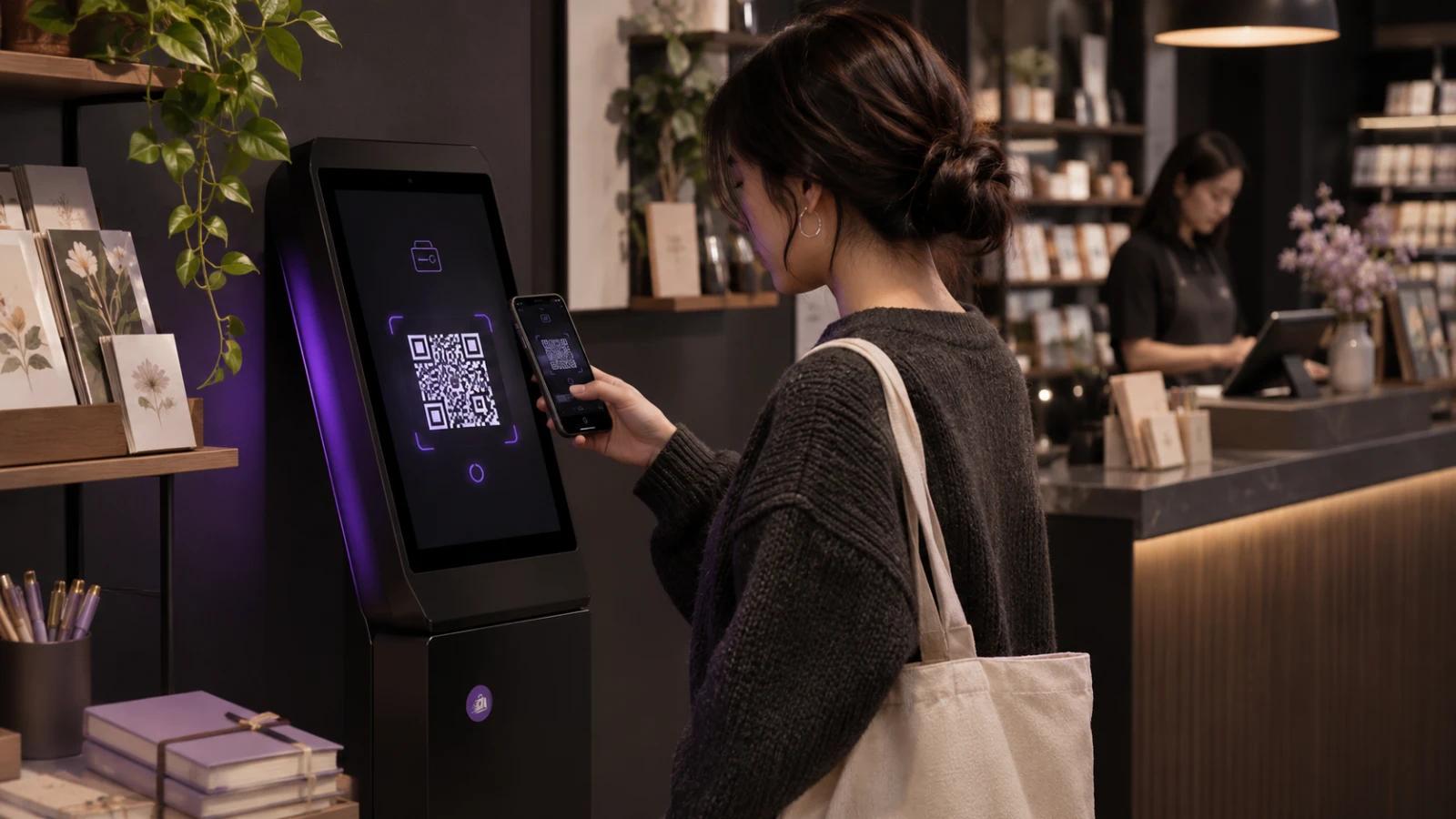
QR code payments let a customer pay in a shop by scanning a code with their own phone and completing the payment on a page that opens on that phone. For a small retailer, the useful question is not whether QR payments work. It is which kind of code belongs at your counter, and how you know an order is really paid before the goods leave the shop.
Two shops can both “accept QR payments” and run very different processes. One tapes a printed code by the register, and customers often type in the amount themselves. The other shows a new code on screen for every order, amount already set, and waits for that order to change to Paid. This guide explains the difference, how a dynamic QR checkout works, what to do when a payment fails and what a permanent shop needs before switching it on.
QR ordering, QR payment and QR checkout are not the same thing
A QR code payment is a payment the customer starts by scanning a QR code and completes on their own phone. The code leads to the payment details, at minimum who is being paid, and the payment is complete only when the payment provider confirms it, not when the code is scanned.
The term often gets mixed up with neighboring ideas, each solving a different problem:
| Term | What the QR code does | When the customer scans it | Typical setting |
|---|---|---|---|
| QR code ordering | Opens a menu or catalog so the customer can place an order | Before ordering | Restaurant tables, cafés, venues |
| Static payment QR | Points to a fixed payee; with many providers, the customer enters the amount | At payment | Market stalls, small counters, person-to-person payments |
| Dynamic payment QR | Opens a payment request tied to one order and its amount | At payment, once the order exists | Shops with a POS or self-service kiosk |
| QR checkout | Opens a hosted checkout or payment-link page on the customer’s phone | At payment | Kiosks, invoices, remote orders |
| Scan to pay | Describes the customer’s experience rather than a type of code; some providers also use it as a product name | At payment | Signage and provider features |
Ordering and payment can be combined, as many restaurant systems do, but they are separate steps. This article is about payment in a permanent shop: the code that settles an order that already exists.
How a QR code payment works at a shop counter
In a shop, the usual model is merchant-presented: the shop displays the code and the customer scans it. (The reverse, where the shop scans a code in the customer’s wallet app, is mostly found in markets dominated by one wallet.) A merchant-presented dynamic QR code payment runs in five steps:
- The point of sale creates the order, with a total and a reference, marked as waiting for payment.
- A screen shows a QR code for that order, linked to a payment request for that amount.
- The customer scans and pays on their phone, choosing a method and authorizing it with a card, a wallet or biometrics.
- The payment provider confirms the result, approved, declined or abandoned, back to the shop’s system.
- The order changes to paid and the goods are handed over. Staff check the order status, not the customer’s phone.
Steps 3 and 4 are where QR payments differ from a card terminal. Instead of a card being read by the shop’s hardware, the customer’s phone opens a hosted payment page and the payment is completed there. That phone needs a working internet connection, and so does the shop’s system, to create the order and receive the confirmation.
Scanning is not paying
Scanning a code only opens the payment request. Nothing is paid until the provider confirms it. A customer at the counter with an open payment page has not paid yet, and neither has one showing a screenshot.
Static vs dynamic QR codes, compared with a card terminal
A static payment QR code never changes: it points to the merchant’s account or payment page, and with many providers the customer types in the amount. A dynamic payment QR code is generated for one payment: scanning it opens a payment request tied to a specific order and its amount, so the customer only reviews and confirms.
Static codes are the quick start, which is why “how to print a QR code for payment” is such a common question. A printed code needs no screen and no setup beyond a provider account. The weaknesses can show as sales grow: depending on the provider, payments may have to be matched to sales by hand, a mistyped amount is easy to miss when customers enter it themselves, and a sticker can be covered by someone else’s code.
| Static QR (printed) | Dynamic QR (on screen, per order) | Card terminal | |
|---|---|---|---|
| Amount | Often typed by the customer, depending on the provider | Set by the payment request for the order | Entered by staff or sent by the POS |
| Link to the sale | Often matched afterwards, unless the provider adds a reference | Tied to one order | Tied to the sale when the terminal is integrated with the POS |
| What the shop needs | A printed code and a provider account | A screen connected to the payment provider, such as a kiosk or a POS display | A terminal, a provider contract and often a POS integration |
| What the customer needs | A phone with a camera and data | A phone with a camera and data | A card or a phone wallet; no data connection on their side |
| Code substitution risk | A fraudulent sticker can be placed over it | Lower: a new code appears on the shop’s own screen for each order | Not applicable |
| Typical fit | Low volume, market stalls, a quick start | Busy counters, self-service kiosks, shops that track every order | Card-heavy sales, customers who prefer to tap or insert a card |
The choice is rarely either-or. Many shops keep a card terminal for customers who want to tap a card and add QR payments where they fit, such as on a kiosk.
Where a payment QR code appears in a permanent shop
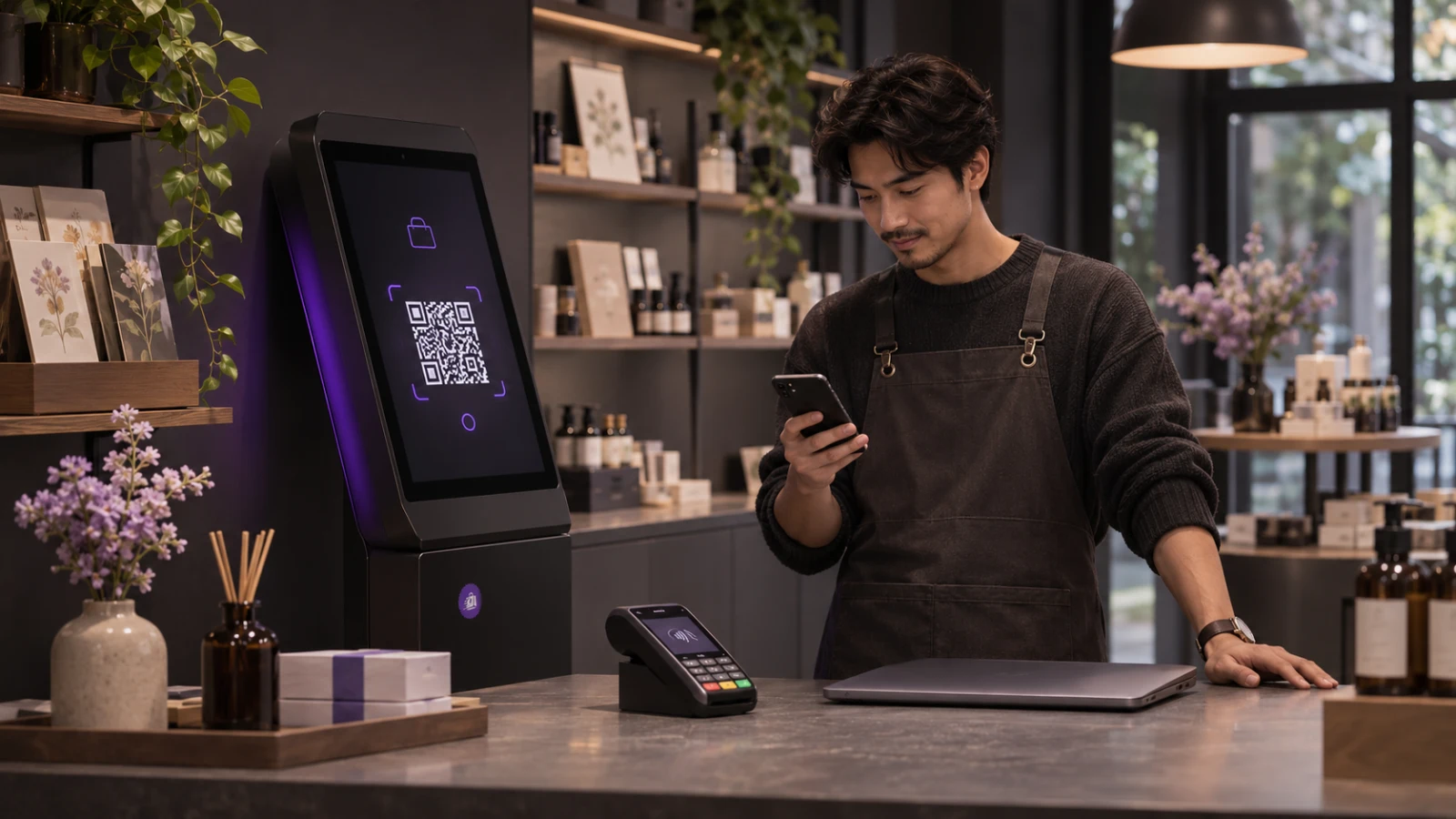
A dynamic code needs a screen the customer can scan. In a permanent shop, that screen is usually in one of two places.
On a self-service kiosk
The customer builds the basket on a tablet, taps checkout and the kiosk displays the payment code for that order. With no staff in the payment step, the kiosk must create the order before showing the code and leave a clear record of whether it was paid.
At a staffed counter
Some POS systems show a per-order QR code on a customer-facing display, or print one on the receipt, so the customer can scan instead of using a terminal. That depends entirely on your POS: check that the code is generated for each order and that the payment result returns to the sale automatically. A staffed counter also handles assisted sales, cash, returns and questions. This comparison of an assisted POS and a self-service kiosk sets out the trade-offs.
A permanent shop is not an event stand: the kiosk keeps the same network and the same stock every day. Taking a kiosk on the road is a different job, covered in running a QR checkout at a trade show.
A worked example: a kiosk beside the counter
Picture a small gift and stationery shop with one staffed counter and an Android tablet kiosk beside it, on a busy Saturday:
- A customer adds two notebooks to the cart on the kiosk and taps checkout. The kiosk creates the order as Pending payment and displays a QR code for it.
- She scans it, a hosted payment page opens for that order, and she pays by card.
- The payment provider confirms. The kiosk shows the order as paid, and it appears as Paid in the shop’s order list.
- The assistant, busy with a cash customer at the counter, sees the paid order and hands the notebooks over.
- A second customer’s card is declined, so her order stays Pending payment. The assistant generates a new payment code and she pays with another card. Had she preferred cash, the assistant would have taken it and recorded it against the same order.
Nothing here depends on what the customer’s phone says. Every decision is taken from the order status in the shop’s own system.
Order statuses tell staff when to hand over the goods
With a dynamic QR checkout, the order exists before the money does. The status tells staff where each sale stands. These are the names Trapyfy uses; other systems use similar ones.
| Status | What it means | What staff do |
|---|---|---|
| Pending payment | The order exists and is waiting for payment confirmation. The customer may still be paying, or the payment may have failed. | Hand nothing over. If the customer is still there, help them finish paying, generate a new payment code or take another accepted method. |
| Paid | The payment provider has confirmed the payment. | Prepare the order and hand it over. |
| Completed | The order has been handed over and closed. | Nothing further. It stays in the record for reporting and any later refund. |
| Cancelled | The order was canceled and will not be paid. | Put any items set aside back on the shelf. There is nothing to hand over. |
One rule covers almost every case: goods leave the shop when the order says Paid. An open payment page, a “processing” message or a screenshot of a confirmation is not the same thing.

When stock and orders share one record, the status also decides when stock moves. In Trapyfy, inventory is deducted when payment is confirmed, not when the order is created, so an abandoned kiosk order doesn’t take units off the count.
What to do when a QR payment fails
A failed QR payment rarely looks like an error message. It looks like a customer frowning at their phone because the card was declined, the bank’s authentication step wasn’t completed, the page didn’t load for lack of signal, or they simply changed their mind. In every case the order should stay unpaid rather than disappear, and staff have three options:
- Try again. Generate a new payment code for the same order and let the customer retry, with the same card or another one.
- Take another method. If you accept cash, take it at the counter and record it against the same order, so the sale isn’t counted twice.
- Cancel. If the customer leaves, cancel the order so it doesn’t sit in the list as a sale that never happened.
At closing time
Before closing, review the orders still marked Pending payment. Identify any whose payment has since been confirmed, then follow your shop’s procedure for the rest, such as checking with the provider, recording another payment method or canceling once the customer has gone. Then compare the day’s confirmed payments with your payment provider’s records. Confirming a payment and reconciling it are separate jobs; this guide to payment confirmation and reconciliation explains the difference with an online store, and the logic holds at a counter.
Keeping QR payments safe at the counter
The best-known QR risk is substitution. Fraudsters stick their own printed codes over a merchant’s, on a counter, a poster or a parking meter. A customer who scans the fake code lands on a page that takes their money or card details, and the shop never sees the payment. It is one form of what is often called quishing, or QR phishing.
A code generated on the shop’s own screen for each order reduces that specific risk: there is no permanent sticker to cover. It does not remove fraud altogether. A customer can still receive a fake payment link by message, a device can be tampered with, and someone can show staff a convincing fake confirmation. These habits help close the gaps:
- Hand over only on a Paid status in your own system, on the kiosk or in the order list, never on the strength of the customer’s screen.
- Keep printed payment codes to a minimum, and check any you use daily for stickers or damage.
- Encourage customers to check before they pay that the page opened from a legitimate web address and that the visible details, such as the amount, match their order. The FTC warns that scammers hide harmful links in QR codes.
- Never take card details out loud or outside the payment page.
- Limit who can settle orders manually, such as recording cash against an order, and review those settlements at closing.
- Secure the kiosk with a stand or enclosure that covers the power and volume buttons, and keep the tablet locked to the kiosk screen.
What a small shop needs before accepting QR payments
Most of the work is in the routine around the code. Before the first customer scans, check you have:
- A payment provider and the in-store payment methods you want, set up separately from online sales if your system allows it.
- A screen that generates a code for each order: a self-service kiosk, or a POS with a customer-facing display that supports it.
- An internet connection for that screen, plus mobile signal or guest Wi-Fi for customers’ phones. A hosted checkout can’t be completed offline.
- Clear “Scan to pay” signage beside the screen.
- An alternative for customers without a smartphone or data, or who would rather not use them: cash, a card terminal or staff help.
- An end-to-end test: place an order, scan, pay with a real card and find the order as Paid in your back office.
- A closing routine for orders still waiting for payment, and a decision on receipts: printed, emailed or none.
How Trapyfy handles dynamic QR checkout at the kiosk
Trapyfy POS and self-service kiosk run in-store sales on the same catalog, stock and order list as the rest of the business, including orders from a Telegram shop. The kiosk runs on an Android tablet and works as the example above describes. At checkout, Trapyfy creates the order as Pending payment and the kiosk shows a payment QR code for it. The customer scans it, and a hosted payment page opens through Trapyfy’s Niftipay integration, where they pay by card or another method enabled and available for your account, which can include Apple Pay or crypto. Once Niftipay confirms, the order shows as Paid on the kiosk and in the Trapyfy orders list. If the payment fails, the order stays Pending payment, and staff can regenerate the payment QR code or record cash against it.
The two systems have separate jobs. Trapyfy runs the catalog, the kiosk, the orders and their statuses, and lets you choose which payment methods appear in store, separately from online and country by country. Niftipay processes the payment on the hosted page and handles settlement, through a Niftipay merchant account you connect to Trapyfy.
Plan for a few limits: the kiosk and the customer’s phone both need an internet connection, the Android kiosk app is still in beta, and the methods you can offer depend on your Niftipay agreement and your country. Staff-led sales and refunds run through a Register, the assisted side of Trapyfy POS, and those orders sit in the same list as kiosk orders, with cashier and store details. Behind it all is one stock record for the counter, the kiosk and Telegram orders, managed through product and inventory control.
Frequently asked questions
How do QR code payments work in a store?
The shop displays a QR code, and the customer scans it with their phone and pays on the page that opens. With a dynamic code, the point of sale creates the order first and generates a code for that amount. The sale is complete only when the payment provider confirms it and the order shows as paid in the shop’s system.
What’s the difference between static and dynamic QR codes?
A static QR code never changes, and with many providers the customer types in the amount, which can mean matching payments to sales afterwards. A dynamic QR code is generated for one payment and opens a payment request tied to a specific order and its amount. Static codes suit low volumes; dynamic codes suit shops that need every payment tied to an order.
Are QR code payments safe?
They can be, provided the customer pays on a legitimate payment page and the shop confirms the payment in its own system. The main risk with printed codes is substitution by a fraudulent sticker. Codes generated on screen for each order reduce that specific risk, but they don’t stop phishing or other fraud, so customers should check the web address before paying and staff should hand over goods only when the order shows as paid.
Can customers pay by card using a QR code?
Yes, if the payment page behind the code accepts cards. The QR code is only a link: the methods on offer depend on the payment provider and on what the shop has enabled. In Trapyfy, the kiosk’s QR code opens a hosted payment page through Niftipay, where the customer can pay by card or another enabled method.
What happens when a QR payment fails?
The order should stay unpaid (Pending payment in Trapyfy) rather than disappear. Staff can generate a new payment code so the customer can retry, take another accepted method such as cash and record it against the same order, or cancel the order if the customer leaves. The goods stay behind the counter until the order shows as paid.
Can QR payments work without an internet connection?
Not a hosted QR checkout. The shop’s screen needs a connection to create the order and receive the confirmation, and the customer’s phone needs one to open the payment page. Where indoor signal is weak, guest Wi-Fi helps customers reach the page, and another payment option covers the moments when the connection drops.
Are QR code ordering and QR code payments the same?
No. QR code ordering uses a code to open a menu or catalog so the customer can place an order, and it is most common in restaurants. A QR code payment uses a code to pay for an order or an amount. Some systems combine both, but a shop can accept QR payments without offering QR ordering.
Do I still need a card terminal?
It depends on your customers. A dynamic QR checkout on a kiosk doesn’t use a card terminal, because the customer pays on their own phone. But some customers have no smartphone or data connection, or prefer to tap a card, so many shops keep a terminal or cash alongside QR payments.
A new code for every order, and an order behind every code
The value of QR code payments in a permanent shop lies less in the code than in what stands behind it: an order created before the customer scans, a status that turns to Paid only when the money is confirmed, and a team that hands over goods on that status alone. Add an alternative for customers who can’t scan, and a kiosk beside the counter becomes a second checkout without a second person.
To run your counter, your kiosk and your other sales channels from one order list and one stock record, open a Trapyfy account and connect your first store.