One system, two ways to sell in person
Both run on the same product catalogue, pricing and stock as your Telegram storefront, and some events run an assisted POS and a self-service kiosk side by side.
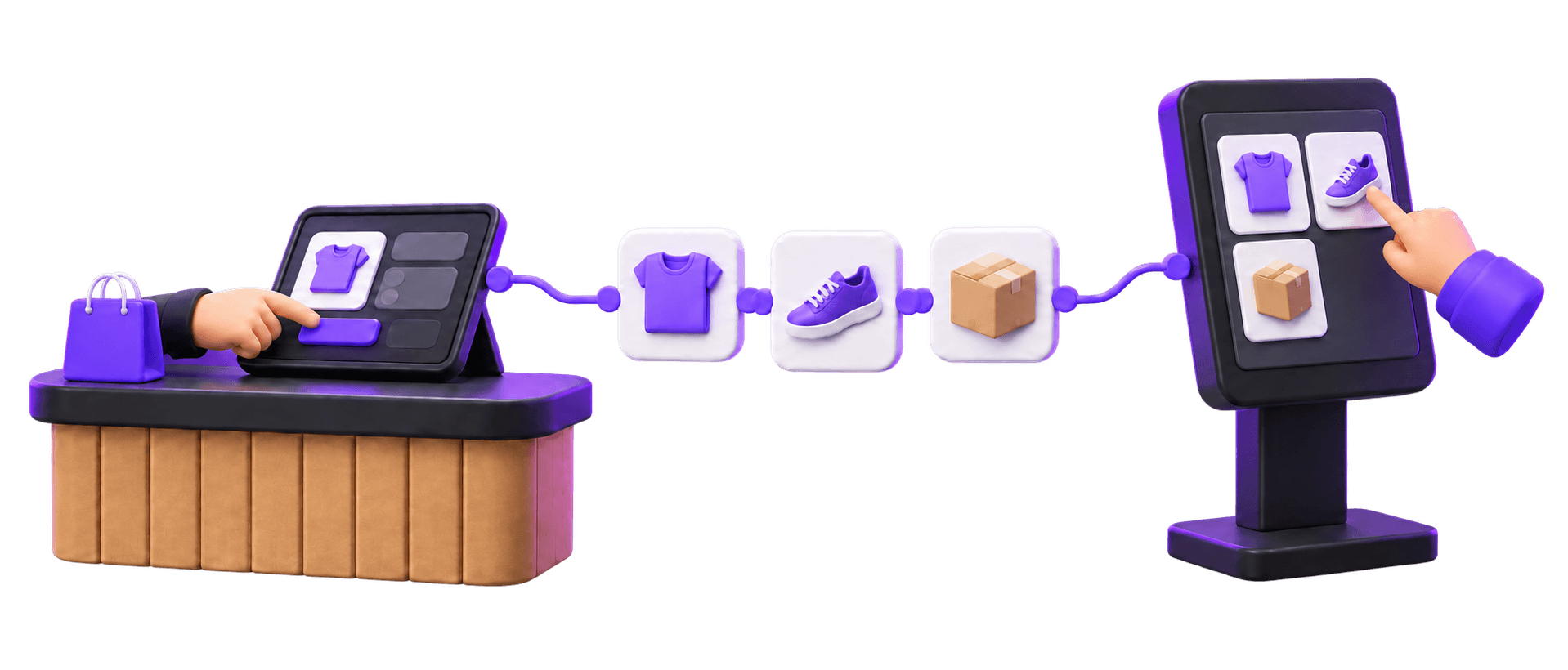
Assisted POS
A member of your team runs the sale on a Register — a staff checkout point inside the same Trapyfy system, used for in-person transactions and refunds. It suits complex orders, higher-touch products, or any counter where someone is there to help.
Self-service kiosk
The customer serves themselves. They browse your catalogue on a tablet, build a basket, and pay by scanning a QR code with their own phone — no staff interaction needed at checkout. It suits simple, well-understood products and higher footfall with limited staff.
Assisted POS: sales your team completes for the customer
Assisted POS puts a staff-operated checkout inside the same system that already runs your Telegram store, so a counter sale is not a separate workflow bolted on afterwards.
A Register for each checkout point
Each Register represents a till or a staff member using the POS. Registers are named individually — a front counter, a specific staff member, a backup point — and appear in the POS outlet selector at checkout, so every sale can be traced to the person or point that took it.
The same catalogue and prices your team already manages
Staff work from the live product catalogue, with the pricing and stock rules already configured elsewhere in Trapyfy, so there is no separate offline price list to keep in sync.
Refunds handled from the same checkout point
Registers also handle staff-to-customer refunds, so a return started at the counter does not need to be resolved somewhere else.
Self-service kiosk: sales the customer completes alone
The kiosk turns a tablet or touchscreen into a self-service ordering terminal: customers browse your product catalogue, add items to a basket, and pay without needing a staff member at checkout.
How a kiosk sale is paid
At checkout, the kiosk generates a QR code. The customer scans it with their own phone, which opens a Trapyfy-hosted payment page, and pays by card, Apple Pay, Google Pay or crypto. If a payment does not go through, or a customer prefers to pay by cash, staff can view the pending order in the backend and either take the cash manually or regenerate the QR code.
Where it fits
A self-service kiosk is well suited to trade shows, events, pop-up shops and retail locations where footfall is high and staff are limited. Once an order is paid, it appears in your merchant backend straight away.
Connected commerce operations
A sale made at a counter or a kiosk draws on the same operational data as every other channel — it does not sit in a separate system.
Catalogue, variants and pricing
POS and kiosk flows read from your live product catalogue, including variable products and their variants, and use the same country-based pricing already set up for your store. A product only appears at the till or on the kiosk once it meets the same publication, pricing and stock rules that govern the Telegram storefront.
Warehouses and inventory
Each POS or kiosk is configured against a specific warehouse and country: only products with stock assigned to that warehouse appear for sale, and the sale decrements that same stock record. If you run several kiosks with different assortments, products can be assigned to each one individually.
Orders, from counter to fulfilment
Every POS and kiosk sale creates an order in the same Orders list as your online sales, with the usual status flow from pending payment through to completed. POS-originated orders also carry checkout details such as the register or cashier and the store or outlet the sale came from, so an in-person sale is never harder to trace than an online one. See how the rest of an order’s lifecycle runs in Telegram order automation and fulfilment routing.
How it works
Setting up in-person selling follows the same logic as the rest of your Trapyfy store.
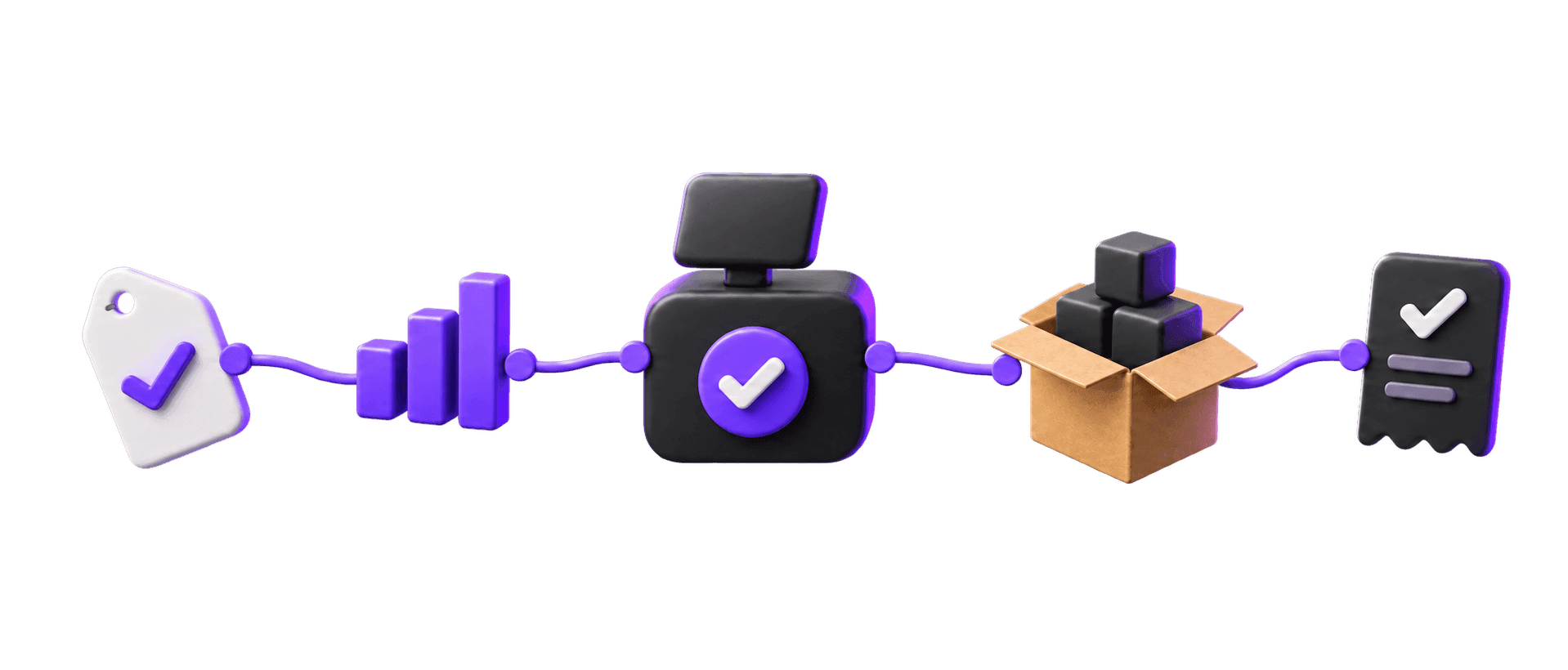
Choose how you want to sell in person: an assisted POS, a self-service kiosk, or both.
Pair the device — a tablet for the kiosk, or open a Register for a staff checkout point.
Select the warehouse that supplies stock and the country whose prices should show.
Assign the products you want available at that POS or kiosk, if you are not showing the full catalogue.
Take the sale — a staff member on the Register, or the customer on the kiosk with a QR payment.
The order lands in the same Orders list as your online sales, with stock and fulfilment already connected.
Hardware and payment compatibility
The details below reflect what is currently documented for POS and kiosk setup. A few specifics are still going through editorial review before this page is published.
Devices
The self-service kiosk runs on a 10-inch or larger tablet — iPad or Android, on a recent OS version — used in landscape orientation, through Chrome, Safari or Firefox. A stable Wi-Fi or mobile data connection is required; testing bandwidth in advance is recommended, with a minimum of around 5 Mbps.
Receipts
A thermal receipt printer, connected by USB or network, is supported for print-on-demand receipts at both POS and kiosk checkouts. Receipts can also be issued as full-page (A4) invoices.
Payment methods
Card, Apple Pay, Google Pay and crypto payments are available at kiosk checkout through Niftipay. Each payment method can be switched on or off for POS and kiosk checkout independently of your online store, and country availability rules apply to in-person sales in the same way they do online. Cash is supported as a manual fallback: staff can collect it directly against a pending order rather than through an automated payment rail.
Still being confirmed before this page can go live: a dedicated card reader or payment terminal beyond the QR-and-phone flow described above, exact device recommendations for assisted POS registers, and country or jurisdiction availability for in-person selling.
Where POS and self-service kiosk fit
Different in-person moments call for different setups — sometimes both together.
Retail stores
Add a staff-run till or a self-service kiosk alongside your existing counter, drawing on the same catalogue and stock as your Telegram store rather than a separate in-store system.
Pop-up shops
Set up a temporary selling point fast, with stock assigned to that pop-up's warehouse so it never drifts out of sync with your main inventory once the pop-up ends.
Events and trade shows
Run an assisted POS for higher-touch conversations and a self-service kiosk for quick purchases side by side, both feeding the same Orders list as the rest of your business.

POS & Self-Service Kiosk FAQs
Quick answers about selling in person with Trapyfy.
An assisted POS is operated by a staff member on a Register, on the customer's behalf, suited to higher-touch sales and refunds. A self-service kiosk is operated directly by the customer on a tablet, who browses the catalogue, builds a basket and pays by scanning a QR code. Some events run both side by side.