

A trade show POS system is what turns interest at your stand into paid orders. This guide is about point of sale in the selling sense (checkout, orders and payments), not point-of-sale display materials. It’s an operational guide: what to set up, in what order, and how to run the stand from load-in to the day after breakdown.
In short: with Trapyfy POS and kiosk, an Android tablet runs a self-service kiosk that sells only the stock you’ve allocated to a dedicated event warehouse. At checkout, the kiosk shows a QR code. The shopper scans it and pays on their own phone, the order moves from Pending payment to Paid, and your staff hand the products over at the stand.
If you’re still choosing the system rather than setting it up, start with our guide to choosing a POS system for a pop-up shop or event.
What changes when the kiosk leaves the shop
A self-service kiosk for retail in a permanent shop has a stable network, a stockroom and a door that locks at night. At a trade show, all of that changes:
- Stock is finite. You bring a fixed quantity, and whatever’s left has to go home and be accounted for.
- The internet is shared or rented. It’s either exhibitor Wi-Fi used by every other stand, or a line you’ve ordered.
- The tablet is exposed. It sits in a public hall, and build-up and breakdown bring contractors and unattended stands.
- Demand comes in peaks. It spikes around breaks and the end of sessions.
- The close has a deadline. Breakdown hours are fixed, and stock and figures still need reconciling afterwards.
Each section below deals with one of these.
A two-week timeline for your trade show POS setup
The Trapyfy steps follow the order the platform’s setup expects. Rows marked general practice are standard exhibitor preparation, not Trapyfy features.
| When | What to do | Done when |
|---|---|---|
| When you book the stand (general practice) | Read the exhibitor manual for power, internet options, rules on selling on the stand, and build-up and breakdown times. Order power and, if offered, a dedicated internet connection. | You know what power and connectivity you’ll have and what you’re allowed to sell. |
| Two weeks before | Create an event warehouse assigned to the event country. Set each product’s price for that country and its quantity in the event warehouse. | Every event product has a country price and stock in the event warehouse. |
| One week before | Create the event store and a receipt template, and turn on kiosk mode. Enable your payment methods for in-person checkout. Order “scan to pay” signage (general practice). | The store shows its kiosk URL and payment methods are enabled for in-person sales. |
| Three days before | Pair every Android tablet, including a backup. Set branding, the guest Wi-Fi QR code and featured products. | Every tablet shows as active. |
| One day before | Run an end-to-end test: order on the kiosk, scan the QR, pay on a phone, find the order in the backend. Charge everything. | A test order has gone from basket to backend. |
| Event day, at load-in | Load the kiosk URL on every tablet and confirm all are active. Test the connection from the stand itself (general practice). Brief staff on handover and failed payments. | Tablets are live, the connection is tested where you’ll trade, and staff know their roles. |
Give the event its own stock
Manage trade show stock as a separate, fixed allocation: put the units you’re taking into a dedicated event warehouse and sell from that alone. That way the stand never draws on stock your Telegram shop is selling, you always know what should be on the stand, and after the show you can see exactly what sold, what came back and what went missing.
In Trapyfy, a warehouse is a named stock pool, not necessarily a building. Create one for the show, assign it to the country where the event takes place, then enter for each product how many units you’re bringing. Those quantities become the stand’s inventory, tracked separately from your everyday stock. For how warehouses and stock pools work across the platform, see product and inventory control.
Each kiosk is set to one warehouse and one country. A product appears on the kiosk only when it is published, priced for that country and in stock in that warehouse. In practice, your stock allocation defines your event range: only products with stock in the event warehouse appear on the kiosk. If you run several kiosks with different ranges, you can also assign products to specific kiosks.
Two constraints to plan around:
- Prices are set per country, not per event. The kiosk shows the price for its configured country, the same price that applies to that country elsewhere in Trapyfy. To make a product stand out on the day, use the featured-product slots described below.
- Stock in transit can’t be sold. If you move stock to the venue with a warehouse transfer, receive it into the event warehouse before the doors open.
Set up the event store and Android kiosk devices
Create the event store and turn on kiosk mode
In Trapyfy, a store can represent a physical location or an event. Each store has its own kiosk URL, paired devices, registers and receipt template. To set one up for the show:
- Create the store with the venue address and country.
- Create a receipt template, either thermal (for a receipt printer) or A4. The same template is used for emailed order confirmations.
- Turn on kiosk mode. This generates the kiosk URL you’ll load on each tablet.
- Point the kiosk at the event warehouse and event country in its inventory and pricing settings.
- Add a register if staff will also make assisted sales or process refunds. Each register can be assigned to a staff member.
Pair each Android tablet
Trapyfy’s kiosk runs on Android tablets only. It opens in the tablet’s browser from the store’s kiosk URL. A 10-inch or larger screen used in landscape is recommended, so the product grid has room. Test on the exact device and browser you’ll take to the show.
- Generate a pairing code in the dashboard. It’s a one-time, 8-character code that expires after 15 minutes.
- Open the kiosk URL on the tablet and enter the code.
- Confirm the device shows as active.
Label each device (“Stand left”, “Backup”) so you can tell them apart. Every tablet gets its own credentials, and deleting a device from the list revokes its access immediately. Pair the backup tablet at the same time as the others, not on the morning of the show.
Set up what shoppers see
The welcome screen doubles as stand signage:
- Branding: logo, brand colours and an optional video background.
- Guest Wi-Fi QR code: shoppers pay on their own phones, so they need a signal. If you have a stand network you’re allowed to share, show its QR code so customers can join without asking for a password.
- Featured products: one “Today’s deal” above the product grid, a “Goes great with your order” strip, and a “Fancy anything else?” prompt after payment. One strong feature and two or three genuine add-ons work better than filling every slot.
What you need at the stand
| Requirement | Why it matters | Trapyfy requirement or your choice? |
|---|---|---|
| Android tablet, 10-inch or larger, landscape | Runs the kiosk | Trapyfy: Android only. Size is a recommendation |
| Kiosk URL in the tablet’s browser | The kiosk runs in the browser after pairing | Trapyfy. Test on the actual device |
| Internet connection, at least 5 Mbps | Orders and payment confirmations depend on it | Trapyfy recommendation |
| Backup network or mobile data | Venue networks slow down or drop | Trapyfy recommendation. The provider is your choice |
| Mains power or a charged portable charger | A flat tablet can’t sell | Trapyfy recommendation |
| Second tablet, already paired | Replaces a failed or missing device | Trapyfy recommendation |
| Payment methods enabled for in-person checkout | The payment page only offers enabled methods | Trapyfy setup |
| Thermal receipt printer (USB or network) | Receipts printed on demand | Optional |
| Secure stand, enclosure or tether | Keeps the tablet on the stand | Your choice (general practice) |
Plan the connection before you plan the stand
Trapyfy’s kiosk requires a working internet connection. It doesn’t take orders offline, so connectivity is part of the stand build. Trapyfy recommends:
- a stable connection of at least 5 Mbps
- a backup network or mobile data
- stable power
- a backup tablet
Two connections matter in a QR checkout. The tablet needs one to create the order and show the confirmation, and the shopper’s phone needs one to open the payment page. Most shoppers use their own mobile data, but indoor signal in large halls can be weak. The guest Wi-Fi QR code on the kiosk gives them a way onto your network.
General event practice, not Trapyfy functionality:
- Get the venue’s options in writing. That means shared exhibitor Wi-Fi, a dedicated line for your stand, and any rules on personal hotspots.
- Expect shared Wi-Fi to slow at peak times, which is exactly when you’ll be selling.
- Avoid networks with a login page where you can. If you can’t, check the tablet is still connected after a few hours.
- Test from the stand at load-in with a real order. Signal in the loading bay tells you nothing.
- Keep the backup ready to switch to, not just packed. Decide in advance who switches it.
If the connection drops mid-sale, check the order in the backend once you’re back online. If it still shows Pending payment, follow the failed-payment steps below.
The 24-hour pre-event checklist
- Event warehouse assigned to the event country.
- Every event product is published, priced for the event country and stocked in the event warehouse.
- Stock transfers to the event warehouse have been received, not left in transit.
- Event store created with the venue address and a receipt template.
- Kiosk mode is on, with the kiosk set to the event warehouse and event country.
- Payment methods are enabled for in-person checkout.
- Every Android tablet, including the backup, is paired and active.
- Branding, guest Wi-Fi QR code and featured products are set.
- A test order has gone from basket to QR to phone payment to Paid in the backend.
- Staff are briefed on handover, failed payments, cash, and refunds through the register.
- Tablets and chargers are charged, and the backup connection has been tested.
- “Scan to pay” signage is printed (general practice).
How a sale works on the day
- The shopper browses the event catalogue on the kiosk and adds items to the basket.
- The kiosk creates the order at checkout, with the status Pending payment.
- The kiosk shows a payment QR code.
- The shopper scans it with their own phone. A hosted payment page powered by Niftipay opens, showing the order summary and total.
- The shopper pays on their phone by card, Apple Pay, Google Pay or crypto, depending on the methods you’ve enabled and what’s available in your country.
- The order moves to Paid. Confirmation appears on the shopper’s phone and on the kiosk.
- Staff hand the order over. The paid order appears in your Trapyfy orders list. Staff pick and pack it, hand it over at the stand and mark it as completed.
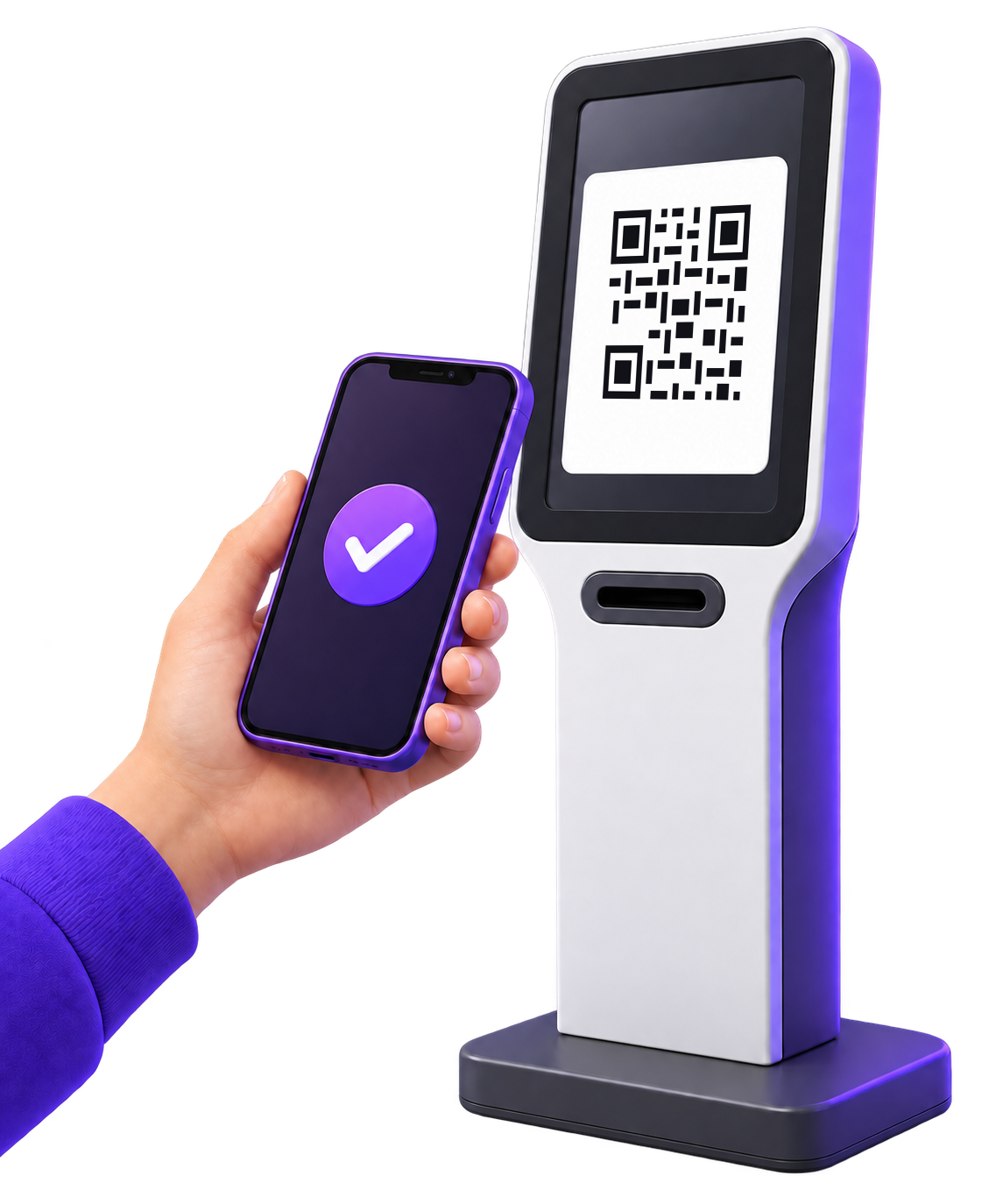
The payment happens on the shopper’s phone, not on the shared tablet. If you’ve connected a receipt printer, you can print receipts on demand using the store’s template.
General practice: hand goods over when the order shows Paid in your backend, not because a phone screen is held up across the counter. A screenshot can come from an earlier order; the order record can’t.
When a payment doesn’t go through
A declined card, a scan that doesn’t load or a shopper who changes their mind all leave the order in Pending payment. Then:
- Find the pending order in the backend.
- Regenerate the payment QR code and let the shopper try again.
- Take cash manually if the shopper prefers it and you accept cash. Staff collect it and settle the pending order in the backend; cash isn’t taken at the kiosk.
- Hand over only once the order is settled, either Paid or confirmed by you as cash.
- Clear anything still open in the end-of-day routine.
Quick troubleshooting at the stand
| Problem | What to check |
|---|---|
| Tablet won’t pair | The code expires after 15 minutes, so generate a new one. Check the tablet’s network connection. |
| Device shows “pending” or “revoked” | Pending means it’s waiting for a pairing code. Revoked means it was deleted and must be paired again. |
| Product missing from the kiosk | Is it published, priced for the kiosk’s country and in stock in the kiosk’s warehouse? If you assign products per kiosk, is it assigned to this one? |
| Order stuck in Pending payment | Check whether the payment succeeded. If not, regenerate the QR code or take cash and settle the order manually. |
| Receipt printer silent | Is the template assigned to the store? Is the printer connected and online? Test from the backend. |
Staff and security for a self-service stand
Self-service doesn’t mean unstaffed. The kiosk handles browsing and payment, but someone still has to get shoppers started, watch for paid orders and hand products over.

General practice for staffing: plan for three jobs.
- A host helps first-time users and explains “scan to pay”.
- Fulfilment watches for Paid orders, then picks, packs and hands over.
- Assisted sales and refunds go through a Trapyfy register, which can be assigned to a staff member.
One person can cover hosting and fulfilment when it’s quiet. Peaks around breaks need two. Brief everyone on the failed-payment steps before the doors open.
What Trapyfy provides for security: each paired tablet has its own credentials, and the kiosk URL contains no API keys. If a tablet goes missing, delete it from the device list to revoke its access immediately, then switch to the backup.
General practice, not Trapyfy functionality:
- Keep tablets in staff sight lines, on a secure stand, enclosure or tether.
- Take tablets off the stand overnight and during build-up and breakdown.
- Keep backend logins on staff devices, never on the kiosk tablet.
- Consider Android’s screen pinning, an operating-system feature rather than a Trapyfy one, to keep the browser in the foreground. Test it first.
Closing each day and closing the event
Trapyfy has no single “close event” button. The routine below uses tools the platform does provide: the orders list, analytics and warehouse transfers.
At the end of each trading day
- Resolve every Pending payment order: regenerate the QR code, settle the cash or cancel the order.
- Review the day’s sales. Orders and Revenue analytics filter by date range, status, order type, payment method and country, and export to Excel. Point-of-sale orders also carry a cashier ID and store ID.
- Count the stand against the event warehouse (general practice). Look into any gaps that evening, while the day is fresh.
- Charge the tablets and take them off the stand (general practice).
After the show
- Transfer unsold stock from the event warehouse back to your main warehouse. You review the quantities before confirming, and nothing moves until you do. When dispatch and arrival happen together, “Move now” does both in one step.
- Receive it promptly. Stock in transit can’t be sold. You can receive it in full or in part, and the rest stays in transit until it arrives.
- Record losses. Units that never come back are recorded as lost when you close the transfer, which gives you a real shrinkage figure for the show.
- Revoke the event tablets if they won’t be used again soon.
- Watch for late refunds. A refunded event order returns its units to the event warehouse they left, even after you’ve moved the rest back.
For more on transfers, in-transit stock and losses, see our guide to multi-warehouse inventory management. Then compare what you allocated, what sold and what came back. That comparison is the starting point for your next show’s allocation.
Turning event buyers into repeat customers
The kiosk can offer a discount in exchange for an email address at checkout, either a percentage or a fixed amount, applied automatically when the shopper enters their email. That gives you a way to bring event buyers back to your Telegram shop after the show.
General practice: an email address isn’t marketing permission. Say clearly on the kiosk what the email will be used for, and follow the consent rules where you sell.
Frequently asked questions
Does a trade show kiosk work without Wi-Fi?
Only if it has another internet connection. Trapyfy’s kiosk must be online, through Wi-Fi or mobile data, to create orders and confirm payments. Trapyfy recommends at least 5 Mbps plus a backup network or mobile data. Test the connection from your stand during load-in, check the venue’s rules on hotspots in advance, and keep the backup ready to switch to.
Do I need a card reader for this kiosk setup?
Not for the kiosk flow described here. The kiosk shows a QR code, and the shopper completes payment on their own phone by card, Apple Pay, Google Pay or crypto, depending on the methods you’ve enabled. Plan around the QR code, a connection for the shopper’s phone and clear “scan to pay” signage.
Can I use an iPad as a Trapyfy kiosk at a trade show?
No, not currently. Trapyfy’s kiosk is Android only. Use an Android tablet, ideally 10 inches or larger and used in landscape, and pair a second Android tablet in advance as a backup. Test both on the browser you’ll use at the show, and run a full test order before the event day.
How much stock should I take to a trade show?
There’s no universal figure. Base it on sales at comparable events, expected footfall and how much you can store on the stand. Whatever quantity you choose, allocate it to a dedicated event warehouse, so you can see exactly what sold, what came back and what went missing. That record sets the quantity for the next show.
What happens to unsold stock after the event?
You move it back with a warehouse transfer from the event warehouse to your main warehouse. You review the quantities before confirming. Stock in transit can’t be sold, you can receive it in full or in part, and any units that never arrive are recorded as losses when you close the transfer.
What’s the difference between a trade show kiosk and a trade show POS system?
A trade show POS system is the whole setup for selling at your stand: devices, payments, stock and orders. A self-service kiosk is one way of running it, where shoppers browse and start checkout themselves. Many stands pair a kiosk with staff selling through a register for assisted sales and refunds.
Stock allocated, connection tested, every order Paid
A trade show is a short sales window, so the work happens before it and after it. Allocate the event’s stock to its own warehouse, test the connection from the stand, hand goods over only when the order shows Paid, and bring unsold stock home with a transfer that records what didn’t come back. Do that, and the show’s figures are ready by the end of breakdown.
Preparing for your next event? Create your Trapyfy account and set up the event warehouse, store and kiosk using the timeline above.